Recipes in SupplyWise: Know What You Make, Know What You've Got
Turn raw ingredients into finished stock without a spreadsheet
If you make what you sell, your stock count is probably wrong
Roasters, bakers and food producers all run into the same problem. You buy green coffee by the bag, flour by the tonne and chocolate by the box, but you sell 1kg bags of house blend, sourdough loaves and trays of brownies.
In between, a spreadsheet, a whiteboard or someone's memory does the maths. When it gets it wrong, you find out the hard way: you run short halfway through production, or you over-order and cash sits on the shelf.
We built Recipes into SupplyWise to fix that.
What a recipe is
A recipe tells SupplyWise what you make and what goes into it. You'll find Recipes under Inventory → Recipes. For each one you set:
- The output item: the finished stock item you make, such as House Blend 1kg or Sourdough Loaf.
- The ingredients: the raw inventory items, and how much of each goes into one unit.
- A waste percentage: the extra you lose in production to roast loss, trimming or spillage. Set it once and it's added to every batch.
- A description and a photo, so your team has the how-to in the same place as the recipe.
When you've made a batch, click Make Recipe next to it and enter how many you made.
What happens when you make a recipe
Before anything changes, SupplyWise shows you each ingredient, how much the batch uses, how much is in stock and what will be left. When you confirm, it:
- Takes each ingredient off stock: the quantity per unit times the amount you made, plus your waste allowance.
- Adds the finished item to stock, ready to sell.
- Records every movement in stock history as "Recipe Made", with who made it and when.
- Marks backorders ready if customers were waiting on the finished item.
- Sends one stock adjustment to MYOB, if you've turned on sending stock adjustments to MYOB, so your accounts match what's on the floor.
You don't enter anything twice or reconcile it at the end of the week. Your stock shows what was actually produced.
An example: a roaster's house blend
The figures here are made up to show how it works.
Say your House Blend is 40% Brazil, 35% Colombia and 25% PNG. You set up a recipe whose output is 1kg of House Blend, using:
- 0.40kg Brazil green
- 0.35kg Colombia green
- 0.25kg PNG green
- Waste: 16% to cover the weight lost in the roast
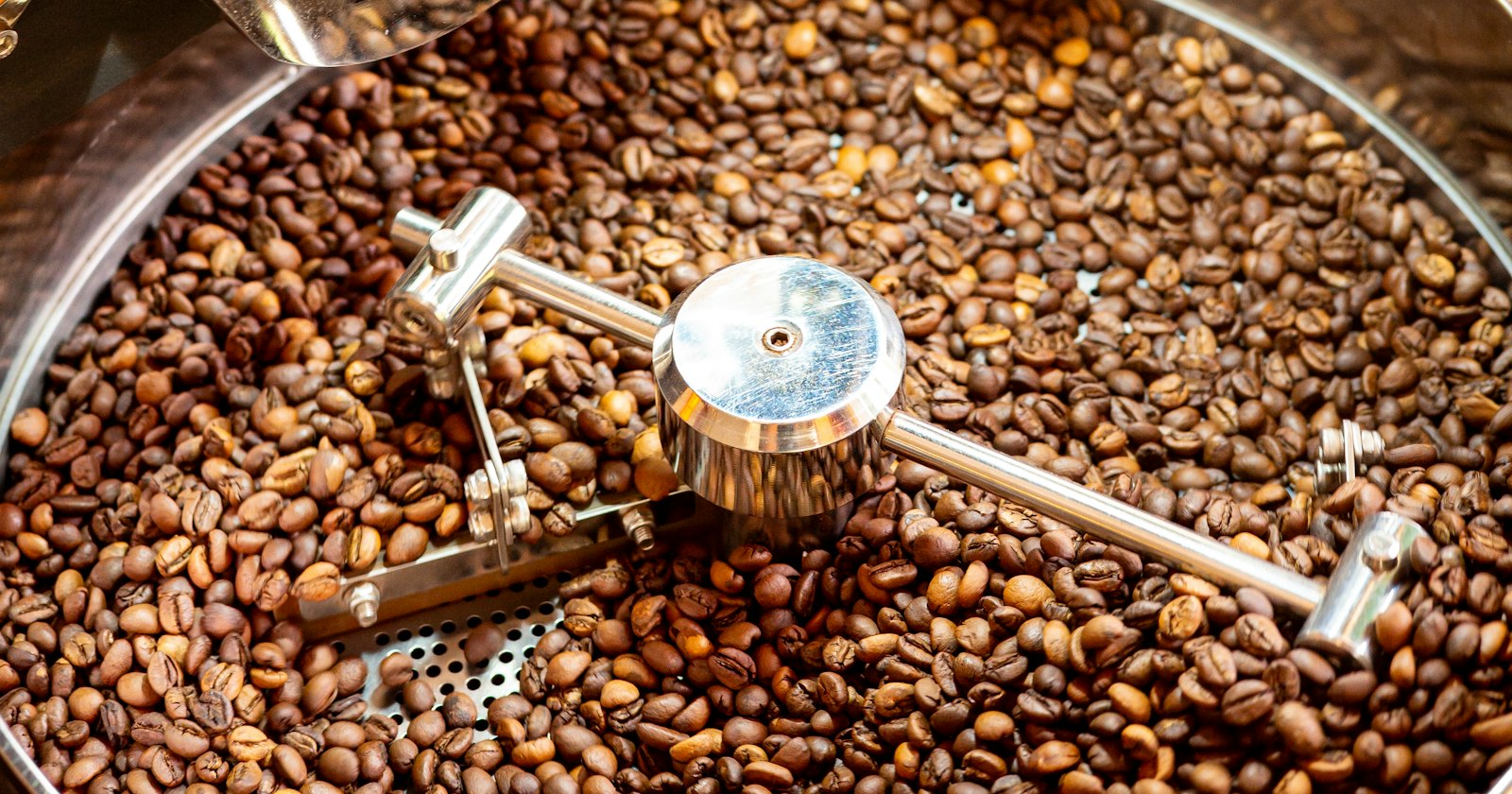
On Monday you roast 60kg. You click Make Recipe and enter 60. With the 16% waste added, SupplyWise takes 27.84kg of Brazil, 24.36kg of Colombia and 17.4kg of PNG off stock and adds 60kg of House Blend. Your next green coffee order can be based on what you actually used.
It works the same way for a bakery (flour, water, salt and starter into loaves), a chai maker (spices, tea and sugar into jars) or anyone combining components into a finished product.
Why it's worth setting up
Your stock stays accurate. Raw ingredients and finished goods move together, in line with what you produce.
Buying gets easier. When you can see how fast each ingredient is used, you can reorder from real numbers. If you also turn on updating stock from supplier bills in Xero, MYOB or QuickBooks, deliveries are added to stock without anyone keying them in, and item costs can update from the bills too.
Everyone makes it the same way. The recipe, description and photo are in one place for whoever is on shift.
There's a record of every batch. Each make is in stock history, which helps with food safety records, stocktakes and working out where stock went.
Problems show up early. If a batch would take an ingredient below zero, SupplyWise warns you first and lets you go ahead if the stock really is there. A negative figure tells you a count or a delivery needs checking, before you find out at the bottom of the bin.
Getting started
- Set up your raw ingredients and finished products as inventory items.
- Go to Inventory → Recipes and add your first recipe.
- Choose the output item, add the ingredients (the quantity for one unit), set a waste percentage, and add a description and a photo.
- Next time you produce, click Make Recipe.
Start with your best-selling product. Once one recipe is working, the rest are quick to add.
Built by people who make things
SupplyWise started inside a working roastery, so we know production is where the numbers get messy. Recipes takes one more job off your list.
Already on SupplyWise? Recipes is in your Inventory menu now.
Not yet? Book a free demo and we'll show you how it works with your own products.